Why Your Prints Look Different from Your Screen — A Photographer's Guide to Color Management, ICC Profiles, and Soft Proofing
TK Broecker / 13 September 2026
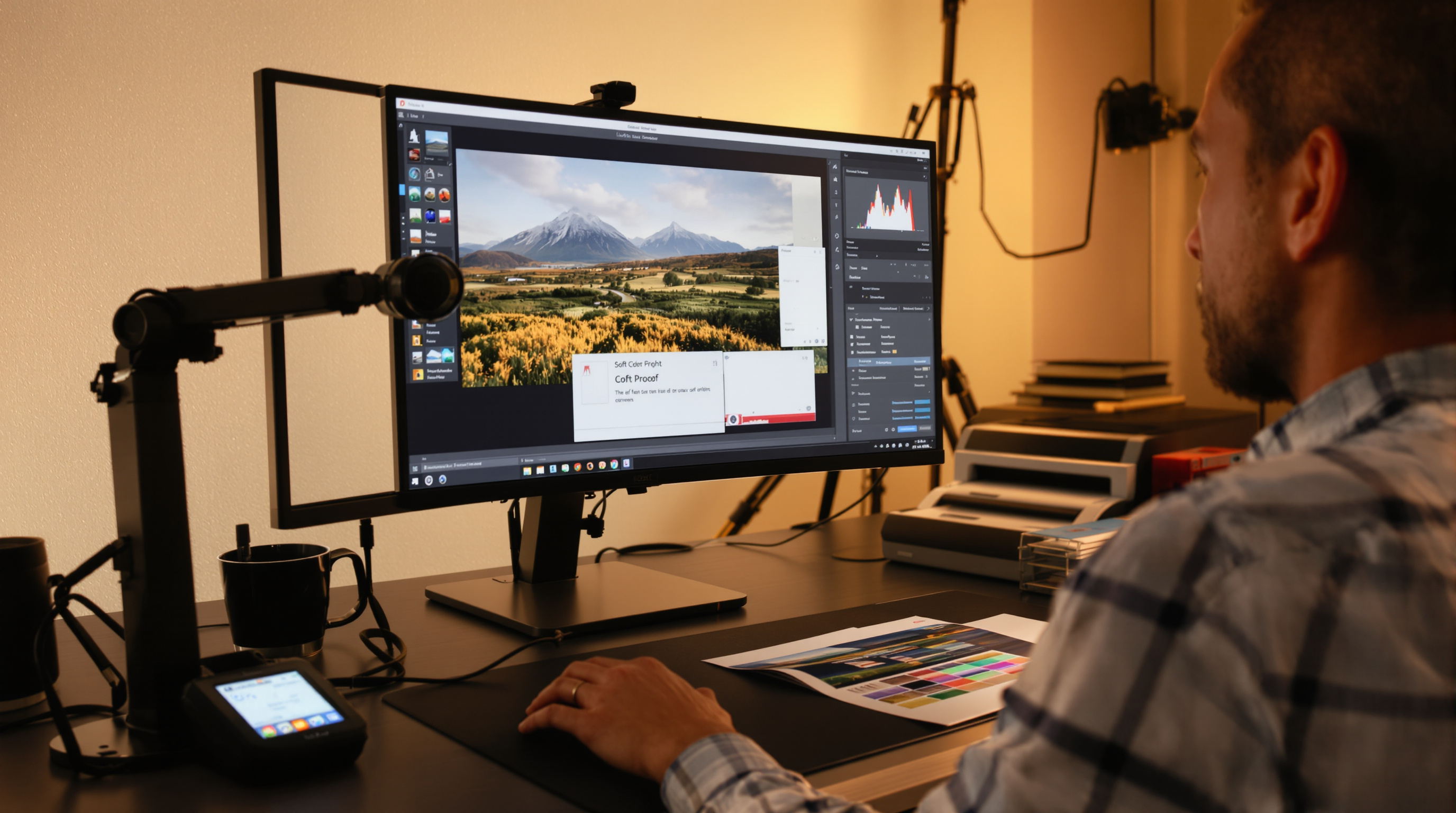
You've spent hours perfecting your edit. The colors are rich, the shadows are just right, and the image looks stunning on your screen. Then the print arrives — and it looks flat, too dark, or completely off in color. If this sounds familiar, you're not alone. This is one of the most common frustrations photographers face, and the solution lies in understanding color management: ICC profiles, monitor calibration, and soft proofing.
Why Prints Look Different from Your Screen
The core issue is that screens emit light while prints reflect light. These are fundamentally different ways of reproducing color, and they don't map to each other automatically. Your monitor can display a far wider range of colors than most printers can reproduce — especially in highly saturated blues, greens, and cyans. When a printer encounters a color it can't reproduce, it silently shifts it to the closest printable value, often with results you didn't expect.
Beyond that, every output device — your monitor, your lab's printer, your home inkjet — has its own unique color gamut and behavior. Without a system to translate between them, the same image file will look different on every device. This is exactly what the ICC color management system was designed to solve.
ICC stands for International Color Consortium, the organization that established the open standard for color profiles used across the industry. An ICC profile is a small data file that mathematically describes how a specific device — monitor, printer, scanner, or press — captures or reproduces color. When embedded in a workflow, it allows software like Lightroom or Photoshop to translate colors accurately from one device to another.
Monitor Calibration — The Non-Negotiable First Step
Before any other color management step matters, your monitor must be accurately calibrated. If your display is showing you inaccurate colors, every editing decision you make is built on a false foundation. Monitor calibration is the process of measuring and correcting your screen's output to conform to a known standard.
This is done with a hardware device called a colorimeter (or spectrophotometer for higher precision). Popular tools include the Datacolor Spyder series and the X-Rite i1Display range. The device attaches to your screen, measures how it actually renders specific colors, and generates a custom ICC profile that your operating system uses to correct the display in real time.
Key calibration targets for photographers include:
- White point: D65 (6500K) is the standard for photography and print work
- Gamma: 2.2 on Windows; on Mac, the system handles this automatically in most modern workflows
- Luminance: 80–120 cd/m² depending on your room lighting (dimmer rooms need lower brightness)
You should recalibrate every 2–4 weeks, as monitor output drifts over time with use. Working on an uncalibrated or poorly calibrated monitor is the single biggest reason photographers are surprised by their prints.
ICC Profiles for Printing and How to Use Them
Once your monitor is calibrated and profiled, the next step is obtaining and using accurate printer ICC profiles. A printer profile describes the specific color output of a printer-ink-paper combination. This is crucial: the same printer using different paper will behave differently in color, and a profile made for glossy paper will not work correctly for fine art matte.
Where do you get ICC profiles?
- Professional print labs (including many Louisville-area labs and national services like WHCC, Bay Photo, and Miller's) provide free downloadable ICC profiles on their websites, specific to each paper type they offer
- Paper manufacturers like Ilford, Canson, and Hahnemühle provide profiles for their papers used on common printer models
- Custom profiling services can print a test target on your exact setup and generate a bespoke profile — the most accurate option for serious studio work
Once downloaded, ICC profiles are installed in your operating system's color profile directory (on Mac: /Library/ColorSync/Profiles/; on Windows: right-click the file and choose Install Profile). Lightroom and Photoshop will then recognize them automatically.
Soft Proofing in Lightroom — See Before You Print
Soft proofing is the process of simulating on your calibrated monitor how an image will look when printed on a specific device with a specific paper. It's a virtual preview that uses the printer's ICC profile to show you exactly where colors will shift or clip before you ever send a file to the lab.
In Adobe Lightroom Classic, soft proofing is built into the Develop module. Press S to toggle the Soft Proofing panel, then:
- Select the Profile from your installed ICC profiles (e.g., your lab's lustre paper profile)
- Choose your rendering intent — Perceptual compresses the entire gamut to fit the printer's range (better for images with lots of saturated colors), while Relative Colorimetric clips out-of-gamut colors and preserves in-gamut ones more accurately (often preferred for portraits)
- Enable Simulate Paper & Ink to also simulate the paper's white point and black density — this gives the most realistic preview
- Turn on the gamut warning (the triangle icon) to highlight in blue any areas that fall outside the printer's reproducible range
When you activate soft proofing, Lightroom automatically creates a virtual copy of your image so you can make print-specific adjustments — such as boosting shadows, pulling back saturated blues, or adjusting contrast — without affecting your original edit. This is a professional-level workflow that eliminates guesswork and costly reprints.
For photographers in Louisville and surrounding areas, combining soft proofing with the specific ICC profiles provided by your chosen local or online lab is one of the most effective ways to ensure consistent, predictable print results — particularly when delivering client work where accuracy and professionalism are non-negotiable.
Conclusion
Color management is not optional for photographers who care about print quality — it is the foundation of a professional workflow. By calibrating your monitor with a hardware colorimeter, sourcing the correct ICC profiles for your print lab and paper choice, and soft proofing in Lightroom before every order, you gain full control over your output. The gap between what you see on screen and what arrives in print can be virtually eliminated — and your clients will notice the difference.